Bridging the Hardware Gap: Tunneling WebGPU Compute Contexts for Remote Testing
IT
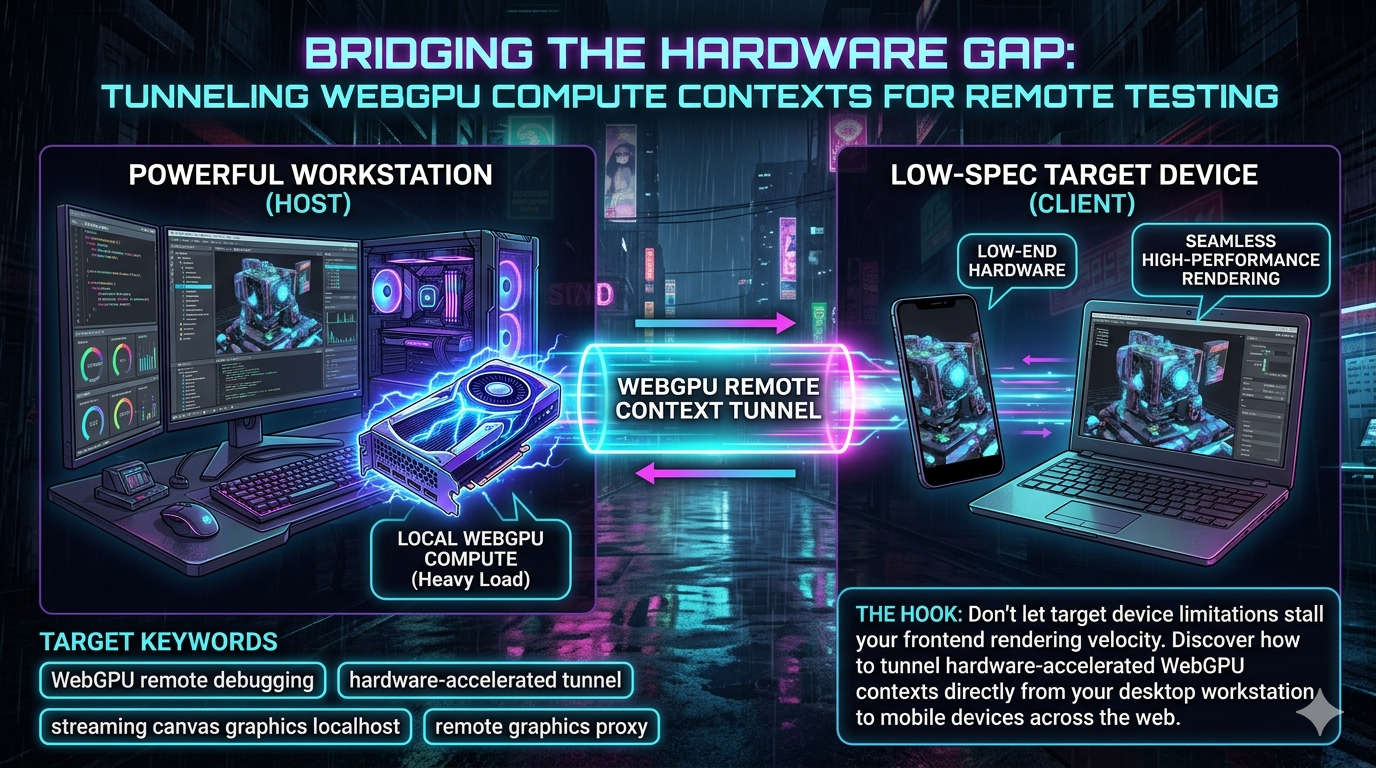
Don’t let target device limitations stall your frontend rendering velocity. Discover how to tunnel hardware-accelerated WebGPU contexts directly from your desktop workstation to mobile devices across the web.
The evolution of browser-based computing has reached a critical inflection point. After eight years of specification work across browser vendors, WebGPU shipped by default in Chrome, Firefox, Edge, and Safari as of November 2025 — covering roughly 82.7% of global browser traffic. Chrome and Edge have supported it since version 113 (April 2023), Firefox 141 brought stable support in July 2025, and Safari 26 landed it in September 2025 across macOS, iOS, iPadOS, and visionOS. The W3C standard currently sits at Candidate Recommendation status, backed by two major implementations: Dawn (written in C++, powering Chrome and its derivatives) and wgpu (written in Rust, powering Firefox).
This is not a graphics demo. Developers are running large language models, computational fluid dynamics, physics simulations, and millions of Gaussian splats directly inside the browser tab. WebGPU provides a low-level, high-performance API mapping closely to Vulkan, Metal, and Direct3D 12 — bringing genuine GPU compute capability to the web for the first time.
However, this leap in graphical and computational power introduces a severe bottleneck in the development lifecycle: cross-device testing.
Your development workstation — equipped with an NVIDIA RTX 4090 or Apple M3 Max — can effortlessly compile complex compute shaders and push 120 frames per second on a heavy 3D scene. The end-user reality is starkly different. The average user might hit your web app on a thermally constrained, three-year-old mid-range smartphone where mobile WebGPU support is still catching up: Chrome Android has supported it since version 121 (requiring at least Android 12 with Qualcomm or ARM GPUs), while Firefox on Android remains in active development with a 2026 target. Safari’s Metal backend imposes per-buffer limits ranging from 256 MB on older iPhones to 993 MB on iPad Pro — hard ceilings that don’t exist in native apps. Testing resource-heavy WebGPU applications on lower-end physical hardware during active iterative development is painfully slow and frequently ends in OOM crashes.
Enter the solution: WebGPU Remote Context Tunneling.
The Bottleneck: Why Mobile WebGPU Testing is Hard
To appreciate the necessity of context tunneling, you need to understand the fundamental init sequence of WebGPU and where mobile falls flat.
WebGPU was designed to be explicitly asynchronous and heavily multi-threaded. A typical initialization sequence involves:
- Requesting a
GPUAdapter— the physical hardware representation - Requesting a
GPUDevice— the logical connection to the adapter - Compiling Shader Modules written in WGSL
- Creating Pipeline Layouts (Render or Compute pipelines)
- Allocating large
GPUBufferandGPUTextureobjects
On a powerful desktop workstation, this happens in milliseconds. On a low-end mobile device, compiling a complex WGSL compute shader can block the device’s limited processing threads entirely. Mobile GPUs also operate under Unified Memory Architecture (UMA) constraints and aggressive thermal throttling. Pushing a 4K texture or running a high-iteration compute shader can crash the browser tab through Out-Of-Memory (OOM) errors or GPU context loss with no meaningful error surface.
During active development, iterating on WebGPU code means constant page refreshes. If every refresh forces a 15-second shader compilation and a large asset download over Wi-Fi to a mobile phone, development velocity grinds to a halt. The goal is to bypass the mobile hardware constraint entirely during the iteration phase while still validating touch interfaces and responsive layouts on a physical device.
What is WebGPU Remote Context Tunneling?
At its core, WebGPU remote context tunneling is a distributed rendering and computation architecture. Instead of the mobile device executing WebGPU commands, it outsources GPUDevice and GPUQueue operations to a remote host — your desktop workstation — and receives the final rendered frames or computation buffers back over a low-latency network connection.
This is not screen sharing. It is a deliberate interception of the WebGPU API layer. There are two primary methodologies:
Command Serialization (API Forwarding): The mobile device intercepts WebGPU calls — device.createBuffer(), queue.submit() — serializes them, and sends them over WebSockets to the desktop. The desktop executes them and returns the resulting state. This mirrors how Chromium’s internal multi-process architecture works, extended across a network.
Context Streaming (Video/Canvas Proxy): The entire WebGPU context is initialized and run natively on the desktop workstation. The final rendered GPUTexture is captured, encoded into a video stream, and sent to the mobile device, which displays it while forwarding input events back. For most web developers focused on rapid iteration, this approach — often called streaming canvas graphics localhost — is the most practical and stable option in 2025.
Building a Remote Graphics Proxy Architecture
Implementing the streaming approach means constructing a remote graphics proxy: your local workstation acts as the heavy-duty rendering server, your target device acts as a thin client.
The Workstation Server
The server is your web application running in a specialized environment on your desktop. Tools like Puppeteer or Playwright (or a custom Electron wrapper) spin up a browser instance with full hardware access. For Chrome, this means ensuring WebGPU flags are properly configured — --ignore-gpu-blocklist is frequently required to override conservative hardware blocklists that Chrome applies by default.
The workstation then:
- Requests the desktop’s high-performance
GPUAdapter - Loads all 3D models, textures, and datasets from local SSD without network latency
- Compiles complex WGSL shaders using the desktop CPU/GPU pipeline
- Executes Render and Compute passes at maximum frame rates
Capturing the WebGPU Context
Once the workstation is rendering frames, you need to capture the output. In a standard WebGPU setup, the final render pass targets the GPUCanvasContext. To stream this, developers use HTMLCanvasElement.captureStream(), which creates a real-time MediaStream from the canvas at a specified frame rate:
// On the workstation server
const canvas = document.querySelector('#gpuCanvas');
const context = canvas.getContext('webgpu');

// WebGPU setup and rendering loop...

// Capture the canvas output at 60 FPS
const stream = canvas.captureStream(60);
One important practical note: Chrome has historically shown FPS instability when throttling captureStream() under load. If you’re seeing frame drops, Firefox’s implementation has demonstrated more consistent capture throughput in testing, worth factoring into your server-side browser choice.
The Hardware-Accelerated Tunnel: WebRTC
To transport this high-definition stream to the mobile device with low latency, WebRTC (Web Real-Time Communication) is the right transport layer. WebRTC uses UDP-based peer-to-peer data streaming with built-in congestion control and hardware video encoding/decoding. Typical end-to-end latency on a local network sits well under 100 ms — the wider internet ceiling is generally 200–500 ms, but LAN-based development setups see far better figures.
The workstation encodes the MediaStream using codecs like H.264, VP9, or AV1 (which offers superior compression for complex graphical scenes at the cost of higher encode overhead) and pushes it through the tunnel. For the data channel carrying input events back, RTCDataChannel operates over the same peer connection with negligible overhead.
It is worth noting that newer transport protocols like WebTransport (built on QUIC) are emerging as alternatives for the data channel leg, offering improved network stability and lower latency variance compared to WebRTC’s SCTP-based data channels — worth watching as browser support matures.
The Mobile Thin Client
On the mobile testing device, the developer navigates to a local network IP or a tunneled URL (ngrok, Cloudflare Tunnel, or similar). Instead of loading the full WebGPU application, the browser loads a minimal thin client HTML page with two responsibilities:
Receive and Display: It establishes a WebRTC connection with the workstation, receives the video stream, and renders it onto a full-screen <video> element. Because modern mobile chips have dedicated hardware decoders for H.264 and VP9, rendering the incoming stream consumes near-zero CPU/GPU resources and bypasses the WebGPU stack entirely.
Event Forwarding: It captures all user interactions — touches, swipes, pinch-to-zoom, device orientation from the gyroscope, DOM events — and sends them back to the workstation via RTCDataChannel. The workstation injects these events into the running WebGPU application, re-renders, and streams the updated frame back.
The loop is fast enough that the user on the mobile device perceives the application as running natively.
WebGPU Remote Debugging: The Real Productivity Win
One of the most significant advantages of context tunneling is what it does to debugging.
Debugging WebGPU natively on a mobile device is brutal. A compute shader that causes a GPU hang or OOM on Android simply crashes the browser tab (“Aw, Snap!”) with no useful stack trace and no console output. You lose all state. Tracking down the specific WGSL line or buffer allocation responsible is guesswork.
When the actual execution happens on your desktop, mobile-triggered bugs surface on the workstation — where you have the full toolchain available:
API Tracers: Tools like Spector.js can record every command encoded in the GPUCommandEncoder, giving you a complete frame-by-frame API replay.
DevTools in parallel: You can keep Chrome DevTools open on a secondary monitor, inspecting memory allocations, performance profiles, and shader compilation errors in real-time — without the DevTools UI itself consuming precious memory on the mobile target.
WebGPU Error Scopes: WebGPU’s pushErrorScope / popErrorScope API lets you catch validation errors and OOM errors asynchronously and log them cleanly to the desktop console. On a real mobile browser, these errors produce silent crashes.
Because the mobile device is only running a video decoder, it remains stable even if the WebGPU application on the desktop hangs completely. You can pause execution, step through the JavaScript generating your command buffers, and hot-reload — the mobile screen simply holds the last received frame and resumes the moment the desktop recovers.
The Developer Workflow: Streaming Canvas Graphics Localhost
Here is what a working “streaming canvas graphics localhost” workflow looks like for a team building a WebGPU-powered 3D data visualization tool.
Step 1 — Local server with UA detection. The developer starts a Node.js server. It detects the User-Agent: desktop browsers get the full WebGPU application, mobile devices on the LAN get the thin client HTML.
Step 2 — Signaling. The mobile device connects via a local IP (e.g., https://192.168.1.100:8080). Both WebGPU and WebRTC require Secure Contexts (HTTPS), so developers either generate local SSL certificates via a tool like mkcert, or use a tunneling service to satisfy the browser’s security requirements during local development.
Step 3 — WebRTC peer connection. A signaling exchange over WebSockets establishes ICE candidates and creates a direct peer-to-peer UDP connection between the desktop and the device.
Step 4 — Hot iteration. The developer writes a new WGSL compute shader and saves. Vite triggers Hot Module Replacement. The hidden desktop browser reloads the WebGPU context, recompiles the shader in milliseconds, and the updated visual output is streamed to the phone. The developer picks it up, uses multi-touch to interact, verifies the layout against the physical notch — all touch events tunnel back to the desktop camera controller. The feedback loop is immediate.
Real-World Applications
Browser-Based LLM Inference
Running large language models via WebGPU is now a practical reality. The WebLLM framework (from the MLC AI team, built on Apache TVM compilation) implements PagedAttention and FlashAttention in WGSL and ships an OpenAI-compatible API. Published benchmarks on an M3 Max show Llama 3.1 8B (4-bit quantized) running at 41 tokens per second and Phi 3.5 Mini at 71 tok/s. Smaller models like Phi 3.5 Mini require up to 2 GB of VRAM; larger models like Llama 3.1 8B push 5 GB or more.
Mobile is where this breaks down. Safari’s Metal backend caps per-buffer allocations at 256 MB on older iPhones and 993 MB on iPad Pro — hard limits that make loading anything beyond the smallest quantized models impractical. By tunneling the compute context, developers can build responsive mobile UIs that interface with a local desktop running the heavy transformer workload, entirely within the browser ecosystem and without cloud API costs.
High-Fidelity 3D and Gaussian Splatting
SuperSplat (built on PlayCanvas Engine v2.19.0, released June 2025) ships a compute-based WebGPU renderer that moves radix sorting of Gaussian splats entirely to the GPU via compute shaders, replacing the previous worker-thread approach. The payoff is near-instant load times and high frame rates even on lower-spec devices, with an automatic WebGL 2 fallback for the ~15% of users not yet on WebGPU-capable browsers. SuperSplat also now auto-generates a streamed SOG (Spatially Ordered Gaussians) format on upload, enabling progressive loading of large scenes.
On the research side, the challenge of deploying Gaussian splatting to mobile remains active. The Mobile-GS paper (ICLR 2026) demonstrated 116 FPS at 1600×1063 on a Snapdragon 8 Gen 3, specifically by eliminating the depth-sorting bottleneck through order-independent rendering — but this is a native implementation, not browser-based. Visionary, an open-source WebGPU engine targeting the browser, reports 60–135× performance improvements over WebGL-based viewers on RTX 4090-class hardware, though mobile remains a secondary target for now.
A remote graphics proxy allows architects and designers to stream WebGPU-rendered 3D scenes to client mobile devices in real-time, with the heavy compute staying on a powerful local workstation — exactly the kind of workflow these constraints make necessary.
Cloud XR and Spatial Computing
The longer-term evolution of WebGPU tunneling is cloud and edge XR. Safari 26.2 has already integrated WebXR with WebGPU rendering on Apple Vision Pro. By shifting rendering workloads to edge servers over 5G, complex browser-based XR experiences become feasible on lightweight headsets — removing the local compute burden, reducing weight, and extending battery life. The infrastructure for this already exists conceptually in the WebGPU streaming proxy architecture described above; the main variable is latency, which 5G edge deployments are steadily pushing below the perceptual threshold.
Limitations and Honest Caveats
This architecture is genuinely powerful for development workflows, but it is not without trade-offs worth being explicit about.
HTTPS everywhere. Both WebGPU and WebRTC mandate Secure Contexts. Local development requires either self-signed certificates (and handling browser warnings) or a tunneling service. This is manageable but adds setup friction.
Input fidelity. Touch events forwarded over RTCDataChannel are a close approximation of native touch, but high-frequency gesture recognition and low-level sensor APIs (pressure, advanced multi-touch) may not map perfectly to injected desktop events.
Codec selection. AV1 offers the best compression for complex graphical content but has heavier encode overhead. H.264 is universally hardware-accelerated for decode on mobile but can struggle with the sharp geometric content typical of 3D scenes. Your codec choice has a real impact on perceived quality at a given bitrate.
Not a production architecture. The streaming proxy is a development and testing tool. For actual end-users, the goal remains running WebGPU natively on their hardware — the browser landscape as of late 2025 makes this viable for the majority of desktop users and an increasing proportion of mobile users.
Conclusion
WebGPU has cleared its last major browser hurdle. All four major browsers ship it by default, covering the vast majority of desktop users globally. The remaining gap is mobile — constrained VRAM ceilings, ongoing Firefox Android development, and thermal throttling that makes direct development iteration slow and fragile.
WebGPU remote context tunneling directly addresses this gap. By running the full WebGPU application on a capable desktop and streaming the rendered output to a mobile thin client via WebRTC, development teams can leverage desktop GPU power while validating physical touch interfaces and responsive layouts on real devices. The debugging story improves dramatically: GPU errors and shader failures surface on the workstation, where the full toolchain is available.
As browser support matures and mobile hardware continues to improve, the need for this proxy layer will gradually diminish. In the meantime, it is one of the more pragmatic engineering patterns available for teams building serious WebGPU applications today.
Related InstaTunnel pages
Continue from this article into the most relevant product guides and workflows.


Comments
Post a Comment